FRM015A - Getting Started with Forms Programming Part A
In this step you will insert a standard push button control to the form.
1. The Design tab, showing the form layout, is selected by default. This layout shows how the form will appear at execution time. It is used to design and build your application.
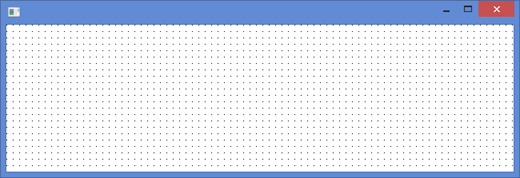
Size the form by clicking on the corner of the form, keeping the mouse button down and dragging the corner to make it about this size:
2. Add a push button to the form:
a. Display the Controls tab.
b. Locate the Push button control.
c. Drag and drop the Push Button control onto your form.
To drag and drop, left click on the push button control in the list and hold the left mouse button down. Move the cursor over to the form layout and release the mouse button to drop the control at the cursor position.
Alternatively double-click the push button control in the list to add it to the form and then drag it to the right.
You can also move components around the form using the Ctrl + Cursor Keys.
Your form layout should now appear something like this:
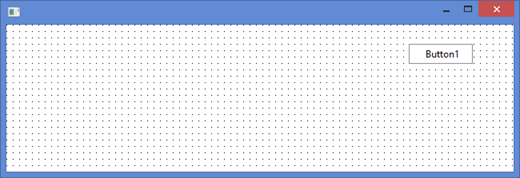
Note: In order to keep this first example simple, we have not included a layout manager on this form, which would enable you to position all components very accurately both when designing the form and at run time. Later exercises will introduce the layout manager component.