FRM015B - Getting Started with Forms Programming Part B
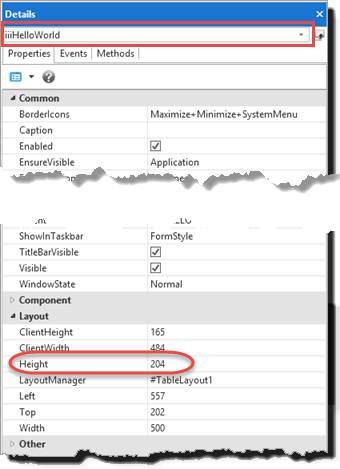
1. Click on the form title bar, and select the Details tab on the left (or press F7). The Details tab is displaying the form properties. Note that the drop down at the top shows "iiiHelloWorld". You can also select a component to work with, from this dropdown.
For example, note the Height property is highlighted.
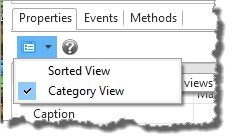
This image shows the Details tab's Category View. You can also select the alternative Sorted View from the toolbar button:
2. Resize the form and note the change in this property.
3. Select the Source tab.
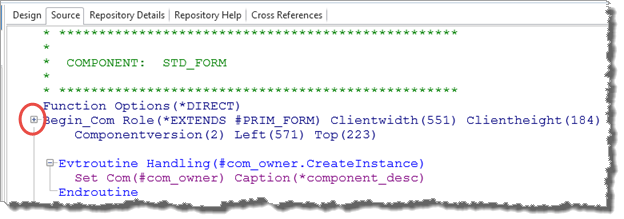
Note the + icon to the left of the Begin_Com. An editor setting is compressing component definitions to save space at the top of the source code. You can change this setting form the File menu / Options / LANSA Settings / Source dialog.
Click the + icon to expand the component definitions:
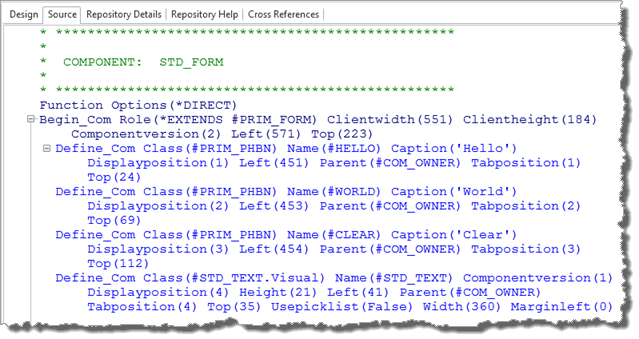
The component source is defined within the Begin_Com / End_Com statements.
The Begin_Com includes the form properties. As usual, RDML / RDMLX does not display properties or command parameters, which have default values.
4. Examine the Define_Com component definitions:
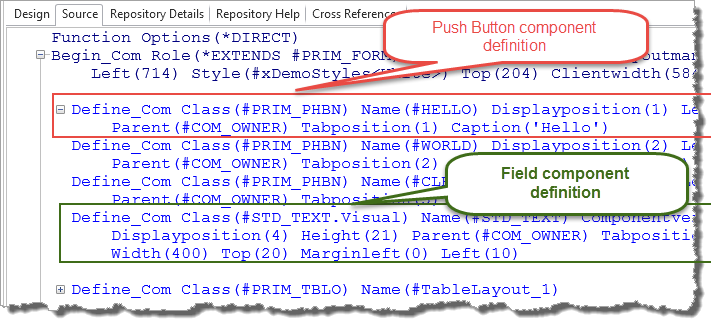
Most components are defined at the top of the source code.
5. Select the Design view. Select the field STD_TEXT. Note that the Details tab shows the field component's properties. Once again the Define_Com code shows only properties that have non-default values.