FRM085B - Update from a Grid Part B
1. You will now change the SKILLS grid second column, to use iiiSKILCODE, and add code to set up its value and use the correct value when updating the Personnel Skills file from the SKILLS grid.
Note: The first column in the SKILLS grid contains field EMPNO and is Visible(False).
a. If necessary open form iiiUpdFromGrid in the editor.
b. Change the SKILLS grid column 2 to use iiiSKILCODE.
Define_Com Class(#PRIM_GDCL) Name(#GridColumn2) Displayposition(1) Parent(#SKILLS) Source(#iiiSKILCODE) Readonly(False)
c. In the SKILLS subroutine, set up field iiiSKILCODE before adding an entry to grid SKILLS.
. . . .
#iiiskilcode := #skilcode
Add_Entry To_List(#SKILLS)
. . . .
d. In the SAVE.Click routine, set up field SKILCODE after each entry in the SKILLS list is read:
. . .
Selectlist Named(#SKILLS)
#skilcode := #iiiskilcode
. . .
2. Select the Design tab. Select the column heading for the Skill Code column in the SKILLS grid and change its UsePicklist property to true.
Right click on the Skill Description column heading and use the context menu to Delete Component. This column is no longer necessary.
3. Compile and test your form. The Skill Code column (which is ReadOnly false) displays the current skill description for each row.
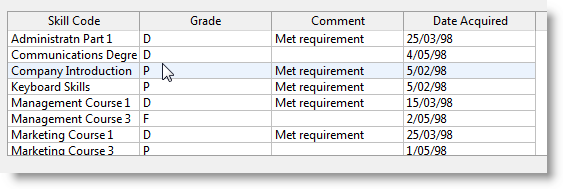
4. Click on any cell in the Skill Code column to display a combo box containing all entries from the Skills Table (SKLTAB):
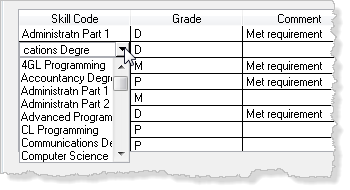
You can select a new value to change the employee skill. However, your save logic expects skill code cannot be changed (employee skill file is keyed on employee number and skill code).
5. In this step you will control whether the skill code column is read only. For existing skill entries it should be ReadOnly = True. For the five blank entries, skill code column should be ReadOnly = False
a. Change the SKILLS subroutine, to set column 2, ReadOnly= True, using the following code, after each entry is added:
. . .
Add_Entry To_List(#SKILLS)
#skills.cell<#skills.currentitem.entry 2>.readonly := true
. . . .
As always, F2 Features help will enable you to find the information you need about the Grid component.
The cell property is used like this:
#skills.cell<row column>
b. Change iiiSKILCODE to *blanks, before five blank entries are added. The skills combo box will now show blanks initially.
. . .
#skllist := *default
#iiiskilcode := *blanks
Begin_Loop To(5)
. . .
6. Compile and test your form. For an employee with existing skills you change grade, comment and date acquired only. Use one of the five blank rows to add a new skill. The skill code combo box visualization allows a valid skill to be selected.