
FRM055B - List Component Basics Part B
In this step you will add push buttons with Click events which demonstrate how the List View EMPLOYS can be processed to retrieve the sorted list, or the list in its original order. That is, in the order in which it was loaded.
1. Lengthen the form. Display All Controls on the Controls tab and drop a Status Bar at the bottom of the form.
Change its AutoLayout property to True:
This will be used to display messages output by the list processing
2. Add a push button below the list view.
a. Change its Caption to Read Sorted List.
b. Change its Name to SORTED.
c. Create a Click event routine for the SORTED push button.
d. Add the following code to the SORTED.Click event handling routine:
For Each(#item) In(#EMPLOYS.items)
Change Field(#STD_NUM) To(#item.entry)
Get_Entry Number(#STD_NUM) From_List(#EMPLOYS)
Message Msgtxt('Employee ' + #EMPNO + ' ' + #Surname + ' ' + #givename)
Endfor
The FOR loop will read all items in the list EMPLOYS. i.e. all rows, in sorted order.
You can use F2 Feature help on the List View component to discover all its Properties, Events and Methods:
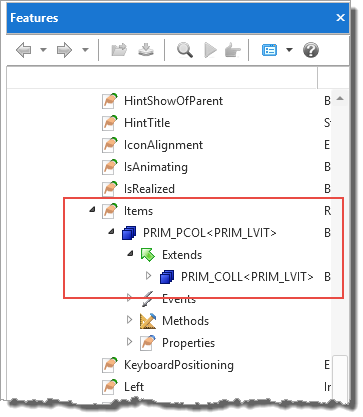
The Item object defined by the Each(#Item) in the code For Each(#item) In(#EMPLOYS.items), has the same Properties, Events and Methods as CurrentItem. Items is a collection of list view items.
You can use F2 Feature help on the List View component. Expand the CurrentItem property and then expand the PRIM_LVIT object to show the Properties, Events and Methods for CurrentItem:
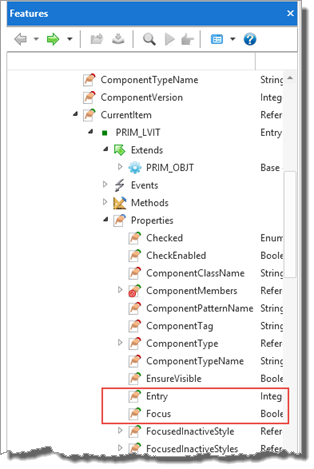
Note also that you can use the Auto Complete prompter (Ctrl + Space if the prompter is currently turned off in Editor Settings) in the editor to discover the properties for Item:
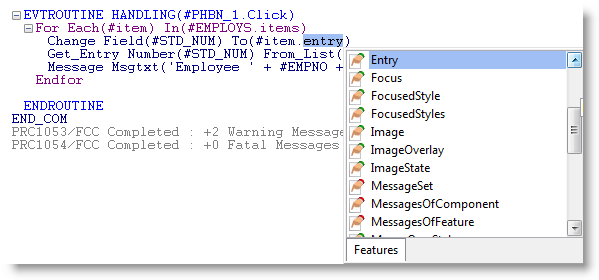
3. Add a second push button below the EMPLOYS list view.
a. Change its Caption to Read Unsorted List.
b. Change its Name to UNSORTED.
c. Create a Click event for UNSORTED
d. Add the following code to the UNSORTED.Click event handling routine:
Selectlist Named(#EMPLOYS)
Message Msgtxt('Employee ' + #EMPNO + ' ' + #Surname + ' ' + #givename)
Endselect
The SELECTLIST reads the List View EMPLOYS in its unsorted sequence. That is, in the order in which the list was loaded.
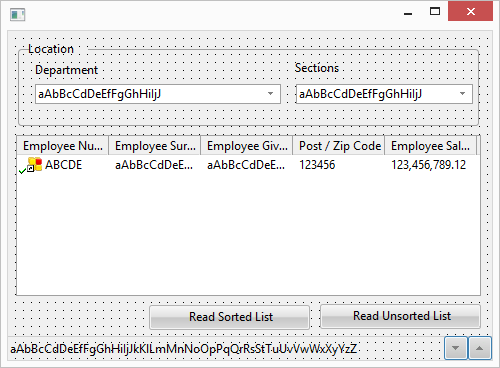
Your form should look like the following:
4. Compile and test your form. Sort the list by clicking on the column heading for Surname, Given Name or Post Code.
a. Messages output by the Read Sorted List push button, will be in the order currently displayed. Compare employee numbers with the list view.
b. Messages output by the Read Unsorted List push button, will always be in the loaded order. In this case in Employee Number sequence.