FRM055B - List Component Basics Part B
This step demonstrates how to use the SortPosition property of a combo box column to display departments and sections in description sequence. The column also has a SortDirection property with a default value of Ascending.
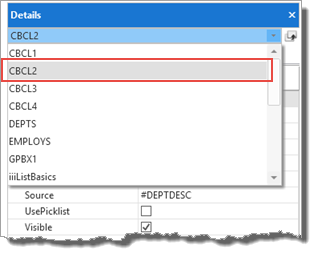
1. Combo box columns are automatically named CBCL1. CBCL2 etc. Select the column for Department Description (field DEPTDESC) in the DEPTS combo box using either of the following methods:
a. In the Design view, select the Details tab.
b. Select a combo box column (CBCL1, CBCL2 etc) from the drop down at the top of the Details tab.
c. Ensure that you have selected the column for field DEPTDESC (Source property)
Alternatively, select the column on the Outline tab:
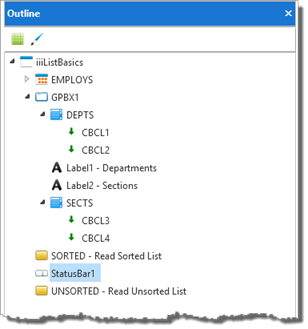
a. Expand the combo box DEPTS
b. Hover the cursor over each column (CBCL_1 and CBCL_2 in this case) and use the Tooltip to discover which column is required
c. Click on the column to select it.
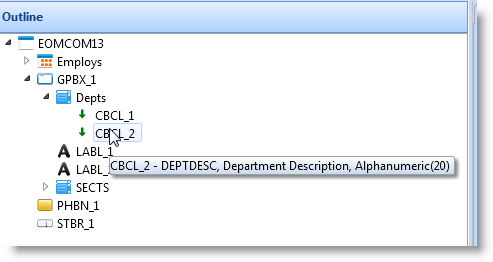
2. With the column in the combo box DEPTS selected which contains department description (field DEPTDESC). Use the Details tab to change its SortPosition property to 1.
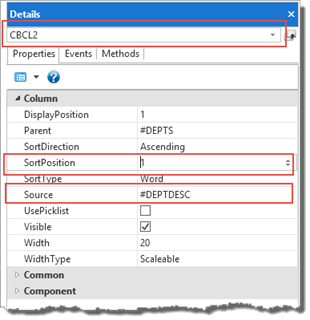
3. Find the column for combo box SECTS containing section description (SECDESC) and change its SortPosition property to 1.
4. Save your changes.
5. Now that the combo box entries are sorted by their description field, you will need to change the method used to position the top entry.
a. Add the code shown highlighted (red, italic) to the form Create_Instance routine. This gives the first entry in combo box DEPTS focus and retrieves the first entry. Remember the FOR loop processes the sorted list.
Evtroutine Handling(#com_owner.Create_Instance)
Set Com(#com_owner) Caption(*component_desc)
Clr_List Named(#DEPTS)
Select Fields(#DEPTS) From_File(deptab)
Add_Entry To_List(#DEPTS)
Endselect
For Each(#item) In(#DEPTS.items)
#item.focus := true
#std_num := #item.entry
Get_Entry Number(#std_num) From_List(#DEPTS)
Leave
Endfor
Execute Subroutine(SECTS)
Endroutine
b. In the subroutine SECTS, comment out the two lines shown as commented (beginning with *) below(Hint: Use Ctrl + W).
c. Add the FOR logic also shown in bold. This will give focus to the first displayed entry and retrieve this entry in order to have the correct section code (field SECTION) to build the list of employees.
Subroutine Name(SECTS)
Clr_List Named(#SECTS)
Select Fields(#SECTS) From_File(sectab) With_Key(#deptment)
Add_Entry To_List(#SECTS)
Endselect
* Get_Entry Number(1) From_List(#SECTS)
* #SECTS.currentItem.focus := true
For Each(#item) In(#SECTS.items)
#item.focus := true
#std_num := #item.entry
Get_Entry Number(#std_num) From_List(#SECTS)
Leave
Endfor
Execute Subroutine(EMPLOYS)
Endroutine
6. Compile and test your new version of form iiiListBasics.
Note: