REP006 - Logical Views
In this step you will create a form that searches the Department file by the department description. You can do this because the logical view you just created is keyed by the department description.
1. Create a New / Basic Form with the following characteristics:
|
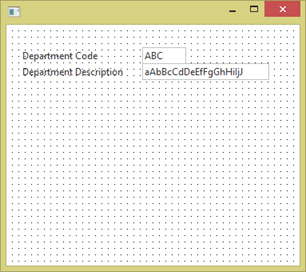
2. Next add the fields iiiDeptCode and the iiiDeptDescription to your form:
a. Once the new form has opened in the Editor,, display the iiiLIST tab.
b. Drag and drop the iiiDeptCode and iiiDeptDescription fields onto the form:
3.Next add a button to the form:
a. Locate the Controls tab. If this tab is not open, open it from the Home ribbon, Views menu.
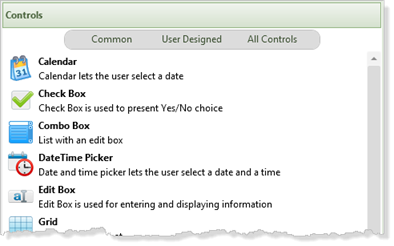
b. On the Controls tab select the Push button control and drag and drop it onto the form:
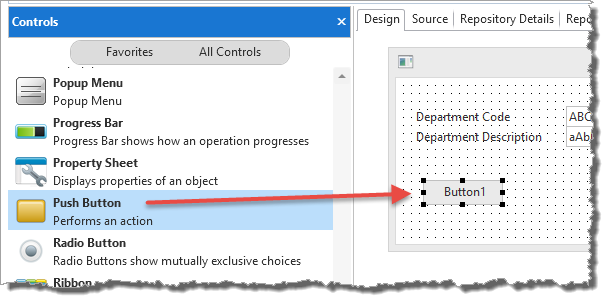
c. Double-click the button on the form to display the Details tab. The Details tab is showing the Properties, Events and Methods for the Push Button.
d. In the Caption property enter Find Department Code.
e. Adjust the width of the push button to display the Caption.
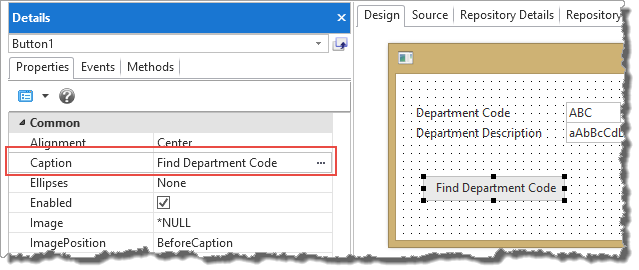
f. Adjust the height and width of the form.
4. Next add some code that will search the logical view and return the department code based on the department description:
a. Select the Events tab on the Details tab. Double click on the Click event to create a Click event routine for the push button. Your code will look like the following:
b. Select the Source tab. Your code will look like the following:
EVTROUTINE HANDLING(#Button1.Click)
ENDROUTINE.
c. Complete the push button click event routine, by adding a Fetch statement. Your new code should look like the following:
Fetch FIELDS(#iiiDeptcode) from_file(iiiDeptsByDesc) with_key(#iiiDeptDescription)
Your complete source code should now look like this:
Evtroutine Handling(#Button1.Click)
Fetch Fields(#iiiDeptCode) From_File(iiiDeptbydesc) With_Key(#iiiDeptDescription)
Endroutine
5.Compile your form. Check that it compiled successfully.
The Fetch button will now process the iiiDepartments file using the logical file in description sequence.