REP008 - Virtual Fields
In this step you will create a form that will show the real fields and the virtual fields in the Employee file.
1. Create a New / Basic Form.
a. Enter the following characteristics for the form:
|
2. Once the Editor has opened, make your form wider.
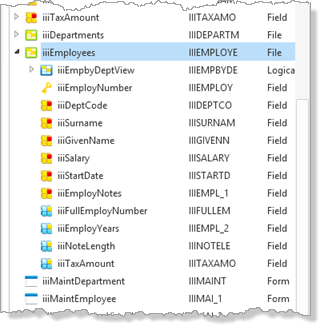
3. Display the iiiLIST tab and expand the iiiEmployees file to display the fields it contains. Notice that the real fields and the virtual fields have different icons:
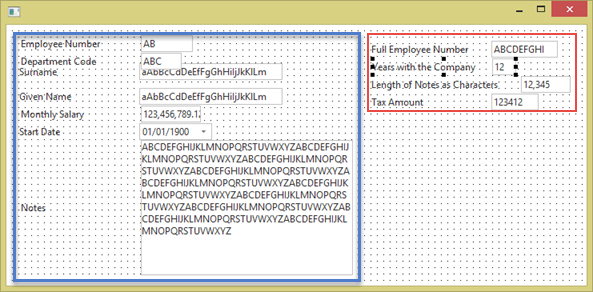
4. Drag and drop all the real fields to your form. Select them as a group using the Shift + Left Mouse button.
Adjust field lengths as necessary.
5. Drag all the virtual fields next to the real fields.
Adjust the field lengths as necessary.
6. Display the Controls tab and drag and drop a push button to the form.
7. With the push button select, on the Details tab, make the Caption of the button Fetch.
8. Display the Events tab and double click on the Click event to create a Click event routine for the button.
9. Display the Source tab of your form and add this code inside the event routine for #PHBN_1.Click replacing III with your initials:
EVTROUTINE HANDLING(#Button1.Click)
Fetch FIELDS(*all) from_file(iiiEmployees) with_key(#iiiEmploynumber)
ENDROUTINE
Your form is now ready to compile.
10. Compile and execute your form.
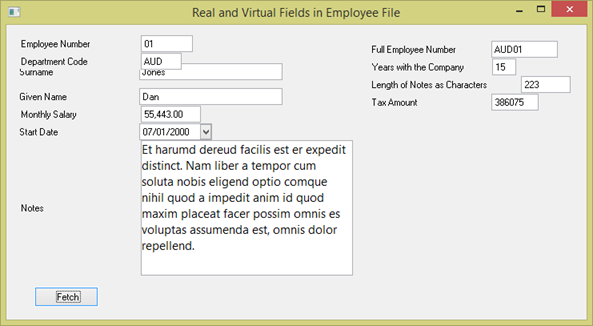
a. Enter an Employee number and click Fetch.
b. Note how the virtual field values are based on the real field values, and have been derived by the file OAM.
11.Close the form.
12.Close the form in the editor.