REP010 - Access Routes and PJFs
In this step you will create an access route from the Department file to the Employee file to describe the file relationship.
1. Open file iiiDepartments in the Editor.
2. Select the Access Routes tab.
3. Click the Add button in the Access Route group on the Home ribbon and select Add Access Route from the menu.
Note: The ribbon is context sensitive. Add Access Route is the only valid option at this point.
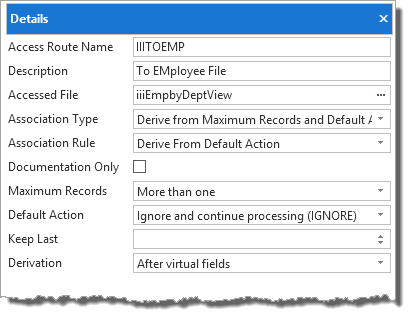
4. In the Details tab, enter the following characteristics:
|
*** Use the ellipsis button and Find dialog to select the logical file.
Your Details tab will look like this:
5. When you add an Access Route an input for the key field is provided. Click on New in the Keys group. On the Details tab, in the Key Field/Value input box, use the ellipsis button and then the Find dialog to select the key field from the Department File, iiiDeptCode
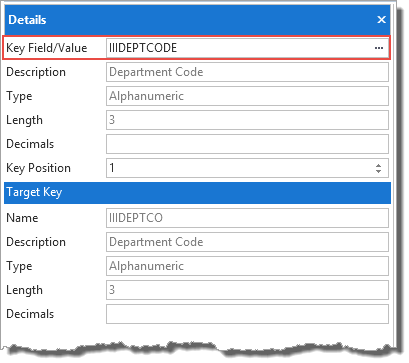
Note: The Target Key has been recognized and selected in the Department file.
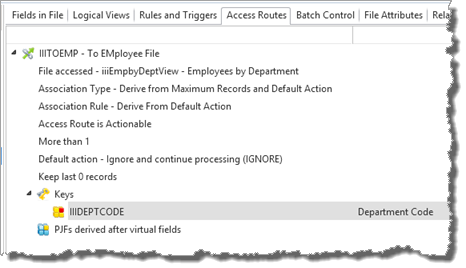
6. Your Access Route definition should now look like the following.
7. Save the file.