 button.
REP012 - Check In Objects
In this step you will execute your Department Maintenance application in client server mode, to access the new Department Table which you have just created on the server.
1. In the iiiLIST tab select the form iiiMaintDepartment and click on the Execute button.
2. In the Execute dialog select Form as Client to RDMLX IBM i Server.
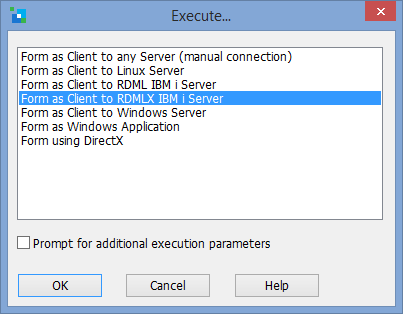
3. Press OK. Your application starts executing connected to the server.
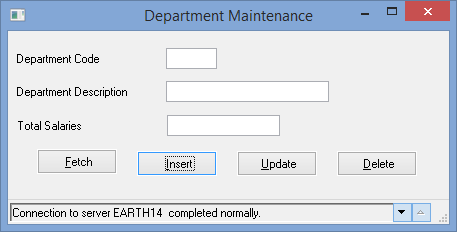
The form is accessing the Department Table on the server via its OAM which was also created when you checked the file in.
4. The new iiiDepartments file on the IBM i server has no records. Enter code ADM and description Administration and click Insert. Notice that as shown by the above image, the connection to the file OAM on the server will complete and issue the message shown.
5. Try to insert another department with the code and description blank. Note that you see the same validation error messages as when you tested the form locally. The OAM on the server, has the same business rules compiled into it.
6. Close your form.
Note: In order to simplify this exercise, just the Departments file and fields was checked in. However due to the file's Predetermined Join Field and Referential Integrity check (file lookup to the Employees file on delete) both the Departments and Employees files plus their fields, should have been checked in. Just the files would then be checked in a second time to recreate the file OAMs based on the latest file definition.