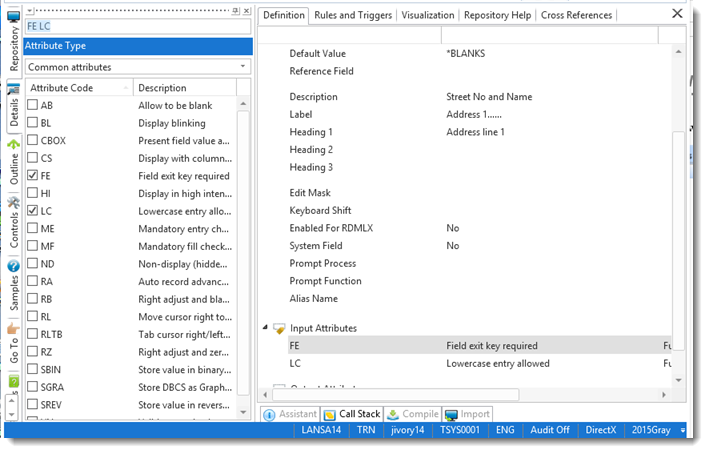
In this step, you will review the definition for the iiiAddressLine1 field to see how the different tabs are used to edit objects. The Details tab is used to display and edit selected properties of objects.
1. Select the Definition tab. You can edit most of the basic field characteristics using this tab.
To change the list of Input and Output attributes, you must use the Details tab.
Double click on the Input attributes list. The Details tab will be displayed as shown:
2. Select some of the Input attributes and you will see that they are immediately included in the list of attributes in the Definition tab.
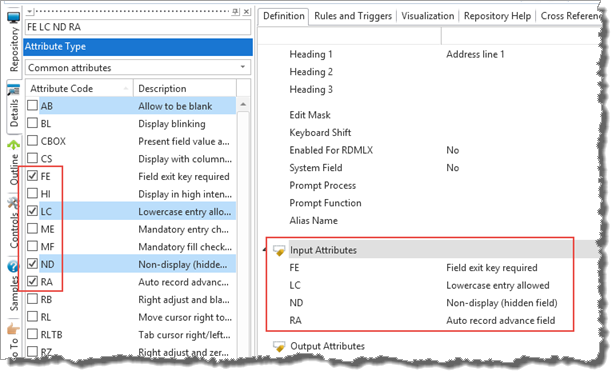
3. Deselect the extra Input Attributes that you selected.
4. Select the Rules and Triggers tab.
This tab simply displays the rule or triggers details. You cannot edit any of the information from this tab. Information must be selected and edited from the Details tab.
Double click on the list entry Address line 1 cannot be blank. Notice that the Details tab is now shown on the left:
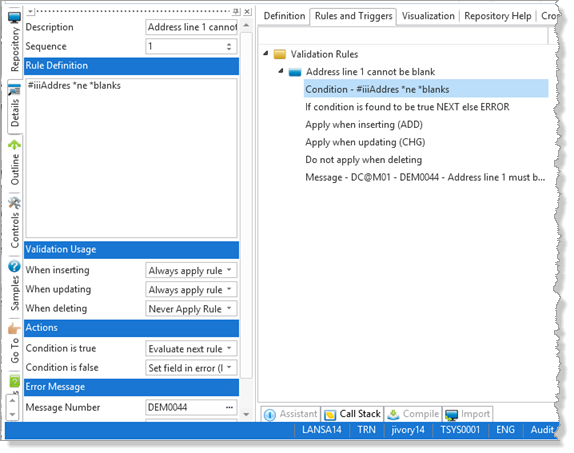
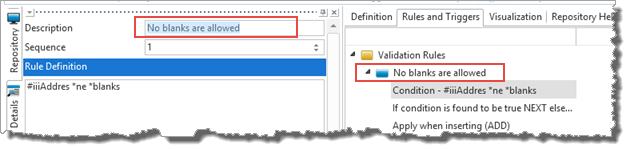
5. Change the Description of the rule in the Details tab to say No blanks allowed. Notice that the rule Description in the Rules and Triggers tab is updated as you type.
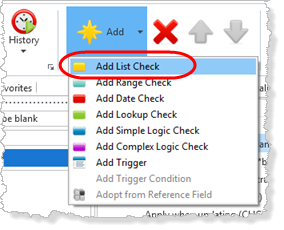
6. On the Home ribbon, expand the Add menu, and select Add List Check.
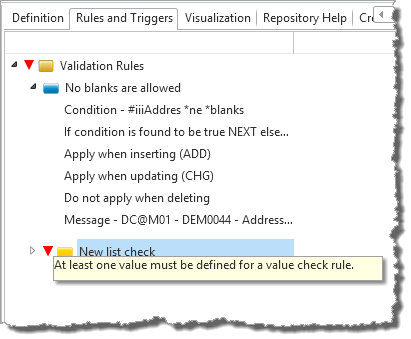
Notice that the details for the new rule are entered using the Details tab. Do not enter any values.
A number of red triangles have appeared in the interface. If you click on a triangles, an error message will be displayed:
Leave this field definition open. The errors will be described in Step 3. View Errors.