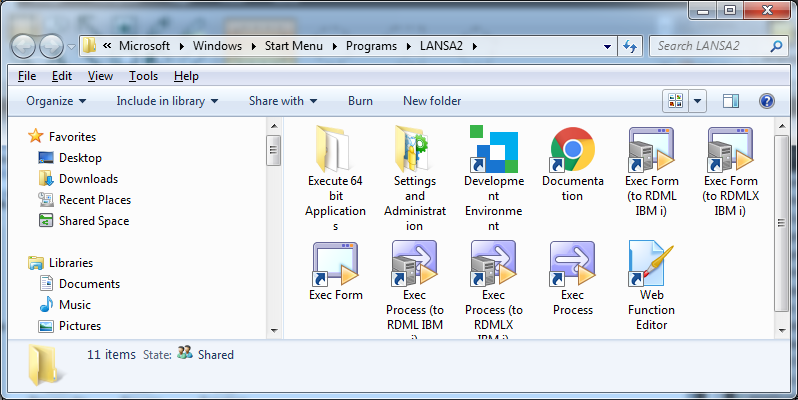
In this step you will locate the LANSA folder and start LANSA.
1. The Visual LANSA Installation creates a LANSA desktop folder a shown:
If you open the Documentation folder, you can directly access the LANSA online documentation. Help (also referred to as the online guide) can also be accessed from within the Visual LANSA Editor. The Editor includes extensive context sensitive help links.
If you open the Settings and Administration folder, you will see a group of program icons used by LANSA Administrators to configure the LANSA environment:
2. Start LANSA using the Development Environment icon  in the LANSA folder
or
via the Development Environment icon in the Windows Start Menu.
3. Double-click on the Development Environment icon to start LANSA. The Visual LANSA Logon dialog will open:
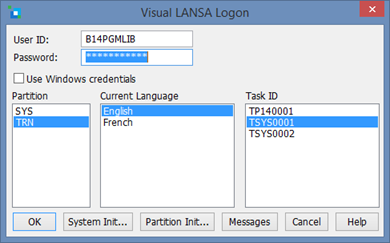
If you are using a trial, stand alone installation, logon using:
User ID: PCXUSER, Password: PCXUSER, Partition: DEM and Task ID: PCXTASK.
The LANSA Editor will open. The appearance of the editor will depend upon the type of installation as well as the editor settings
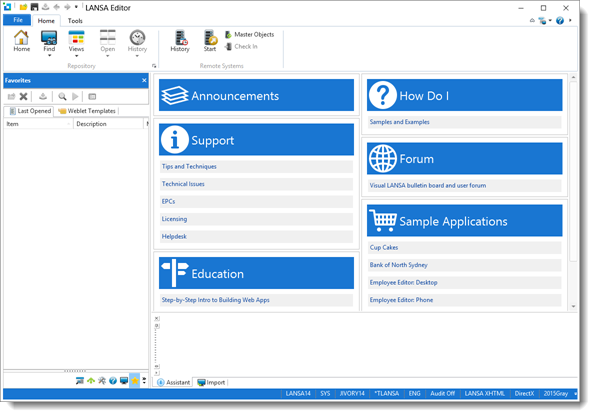
Note: Visual LANSA V14 is shipped configured with a new flat interface style, in step with the latest Microsoft Office products. You will learn about changing the appearance of the editor in these exercises.