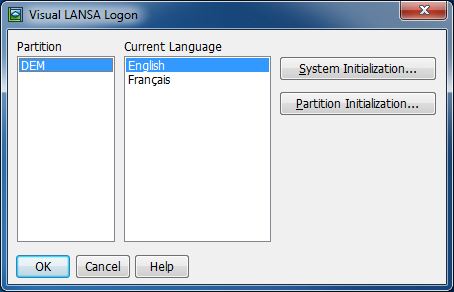
These instructions describe how to setup 2nd and subsequent developers to use A VCS Master. It presumes that the VCS already contains the LANSA Repository. This also means that when the VCS already contains the LANSA Repository, that this is the place to start to setup your first Cloud instance.
Click Cancel! LANSA must be closed in order to remove folders required when initializing the Git working folder.
Populate VCS Working Folder
1. Start a Command Prompt and replace the https path with the path to your GitLab repository.
cd C:\PROGRA~2\LANSA\LANSA\LANSA\LANSA
rd VersionControl
git clone https://gitlab.com/lansa/vl-ide-demo.git VersionControl
2. You will be prompted for your user id and password.
The cloning operation will begin and you should see something similar to the following, especially if it's the LANSA Demonstration Repository.
Cloning into 'VersionControl'...
Username for 'https://gitlab.com': lansa2
Password for 'https://[email protected]':
remote: Counting objects: 1471, done.
remote: Compressing objects: 100% (386/386), done.
remote: Total 1471 (delta 1082), reused 1471 (delta 1082)
Receiving objects: 100% (1471/1471), 4.35 MiB | 1.06 MiB/s, done.
Resolving deltas: 100% (1082/1082), done.
Checking connectivity... done.
Checking out files: 100% (1437/1437), done.
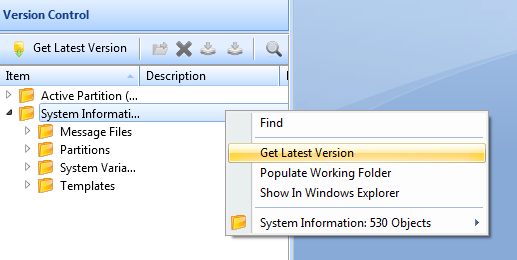
3. Go back to the Visual LANSA Development Environment and perform a Get latest Version on the System Information. This will bring in, amongst other data, all the partitions that are in the VCS Master.
4. Close down the Development Environment and login to the new partition.
5. Perform a Get Latest Version on the Active Partition.
LANSA and the VCS are now linked up together.