Show Contents List - Composer Version 6.1
You can explicitly include specific items in the export. You can choose any number of items to include.
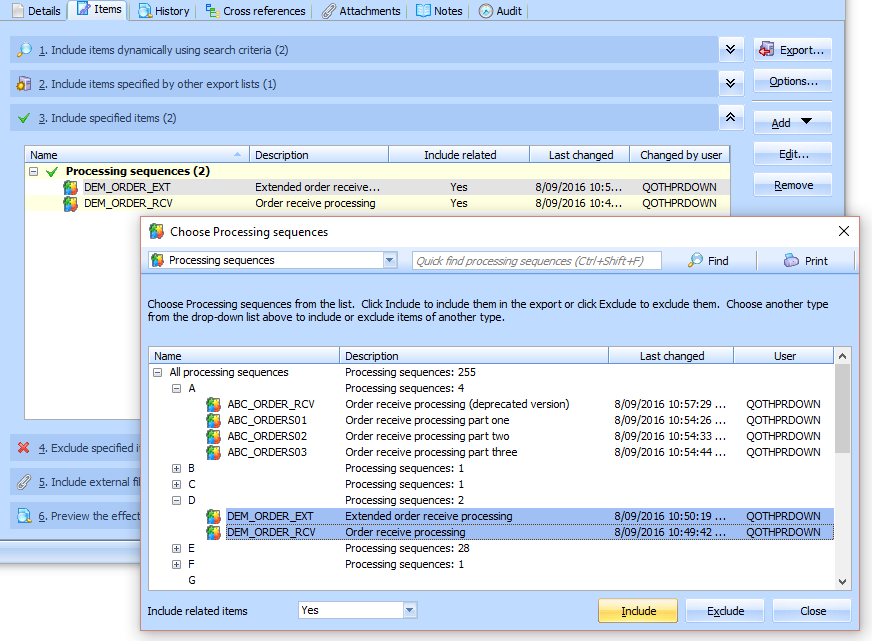
To include a specific item in your Export List, click the Add button and select the Add items to include or exclude command from the menu. Then locate and select the required item(s) in the Choose <items> window and click Include.
When the Choose <items> window opens initially, it shows available Processing Sequences, but you can change the type of items shown by selecting another type from the drop-down list at the top.
To edit the details for an existing included item, select it in the list and click Edit. To remove an included item, select it and click Remove.
Include related items
For each included item, you can also specify whether the export should include its related items. You can choose from the following:
No: related items are not automatically included in the export.
Yes: immediately related items are automatically included in the export.
Recursively: related items are automatically included in the export for the included and for those related items and any further related items. (LANSA Composer will automatically prevent infinite recursion arising from circular references.)
'Related items' means the set of items that are used by a given item. For example, for a Processing Sequence, it might include event handlers, configurations and other items used by the Processing Sequence. For any given item, you can see what will be considered 'related items' by displaying the Used by section of the Cross references for the item.
Note that supplied definitions (items that are supplied with LANSA Composer such as all the shipped Activities) are not included by any of the Include related items options. This means, for example, that Activities that are used by a Processing Sequence are excluded unless they are custom activities that you have defined yourself. This is typically the desired behaviour.