 Version 7.0
In this tutorial you will use LANSA Integrator Studio to create a project that will later contain the JSON binding solutions you will create in later turorials.
In the new project, you will pre-define some JSON server types (simple and compound user-defined types) that will be used later in the JSON binding solutions.
1. Open LANSA Integrator Studio from the Tools menu within the LANSA Composer client program.
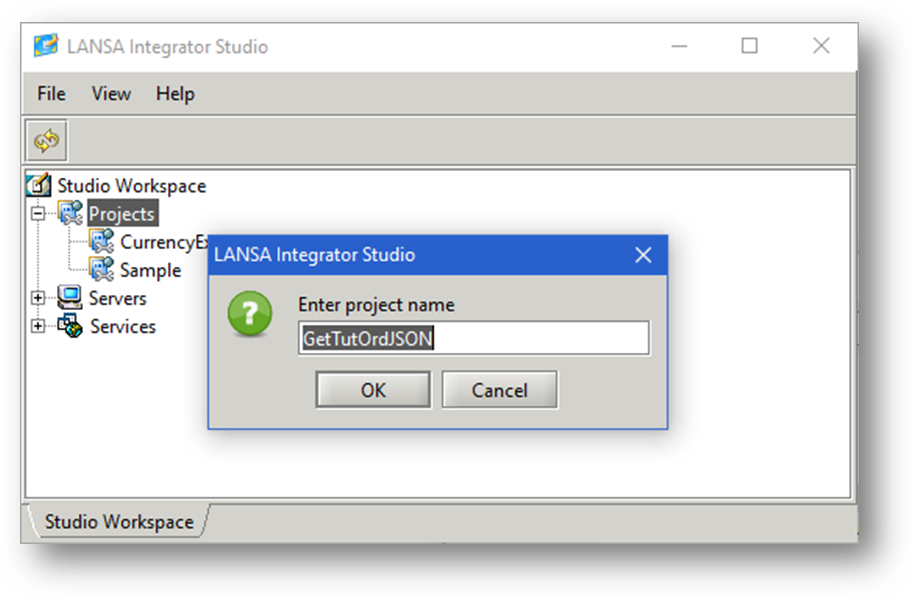
2. Right-click on Projects and select New Project from the popup menu. Type GetTutordJSON as the new project name and click OK.
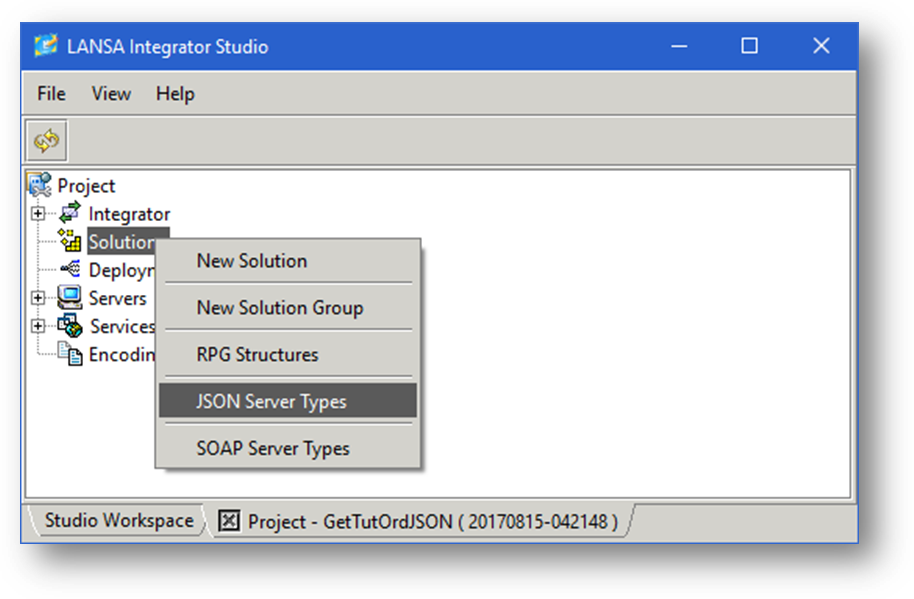
3. Right-click on Solutions and select JSON Server Types from the popup menu.
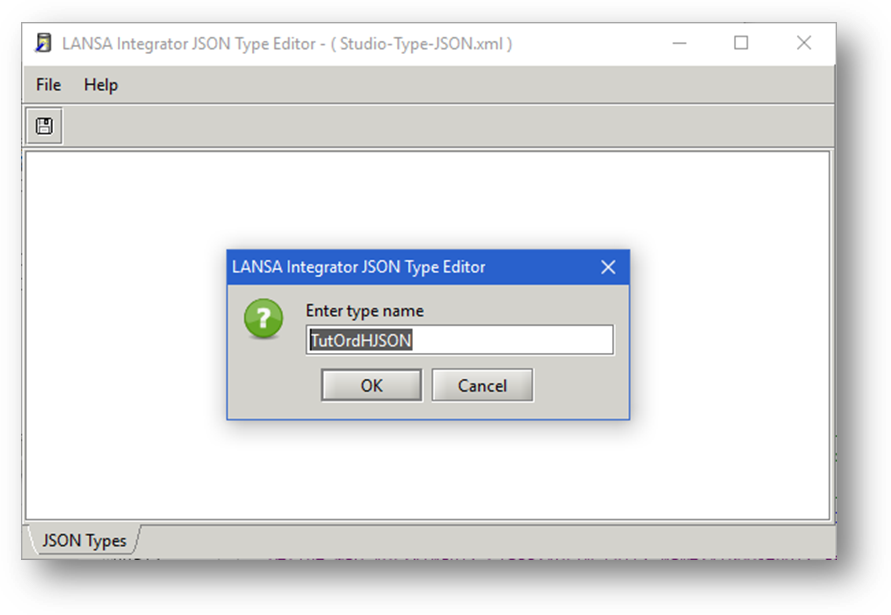
4. Right-click anywhere in the LANSA Integrator JSON Type Editor window and select New Type. Type TutordHJSON as a new type.
5. Right-click on TutordHJSON and select New Element.Enter a name of BatchNumber. Click OK.
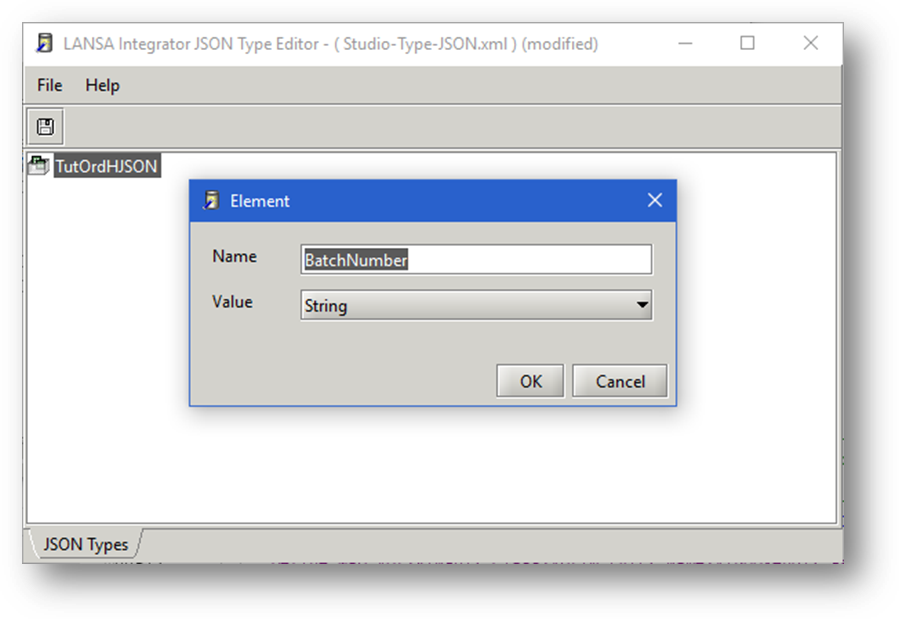
6. Repeat step 5 for CustomerNumber, OrderNumber & OrderDate. When complete, click Cancel. All of the values are a type String. If you make a mistake, right click on the element in question where you can then Edit or Delete.
7. Repeat step 4 and enter a type name of TutOrdLJSON. Then repeat step 5 entering the following elements:-
|
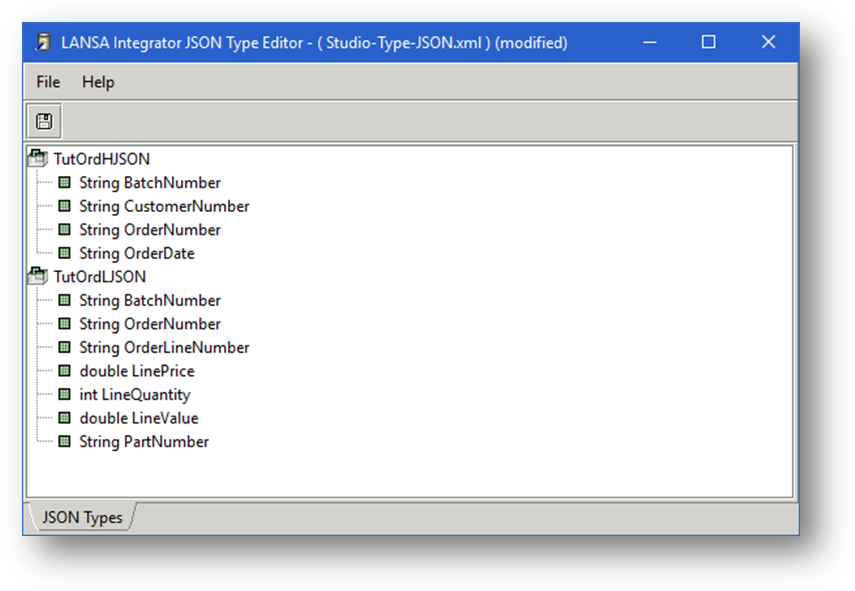
8. Right-click anywhere in the LANSA Integrator JSON Type Editor window and select New Type. Type TutordRequestJSON as a new type.
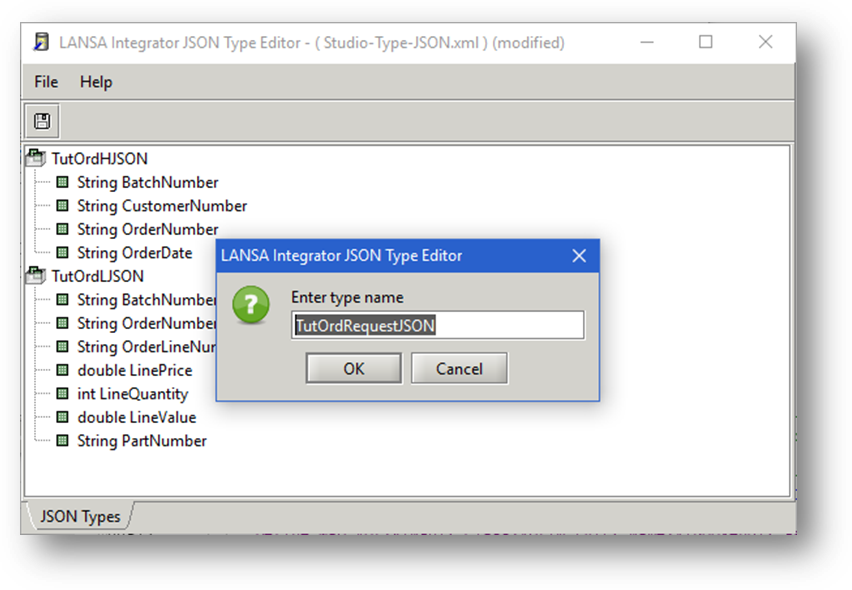
9. Right-click on TutordRequestJSON and select New Element. Enter a name of BatchNumber. Click OK.
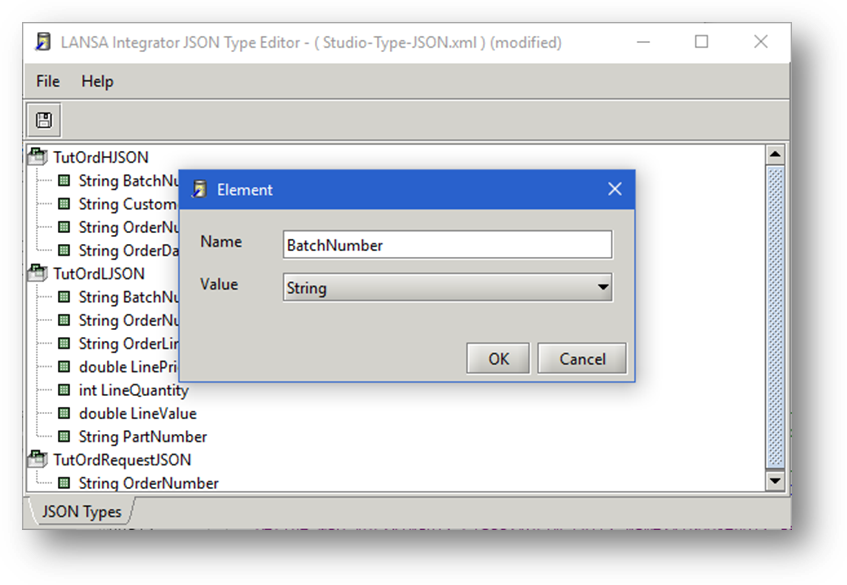
10. Repeat step 9 for OrderNumber. When complete, click Cancel. All of the values are a type String.
11. Right-click anywhere in the LANSA Integrator JSON Type Editor window and select New Type. Type TutordResponseJSON as a new type.
12. Right-click on TutordResponseJSON and select New Element. Enter a name of TutordHResponse. In the value, click on the drop down and select TutordHJSON. Click OK.
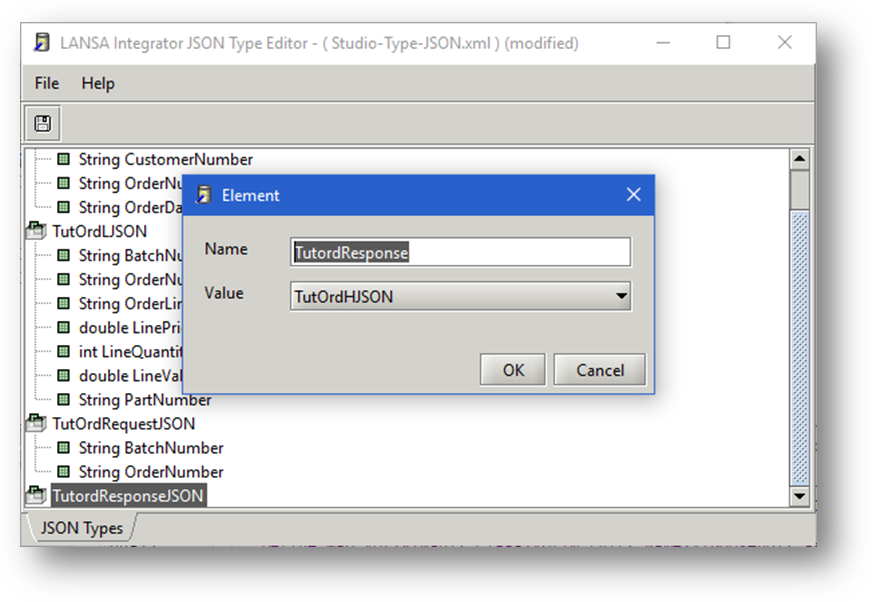
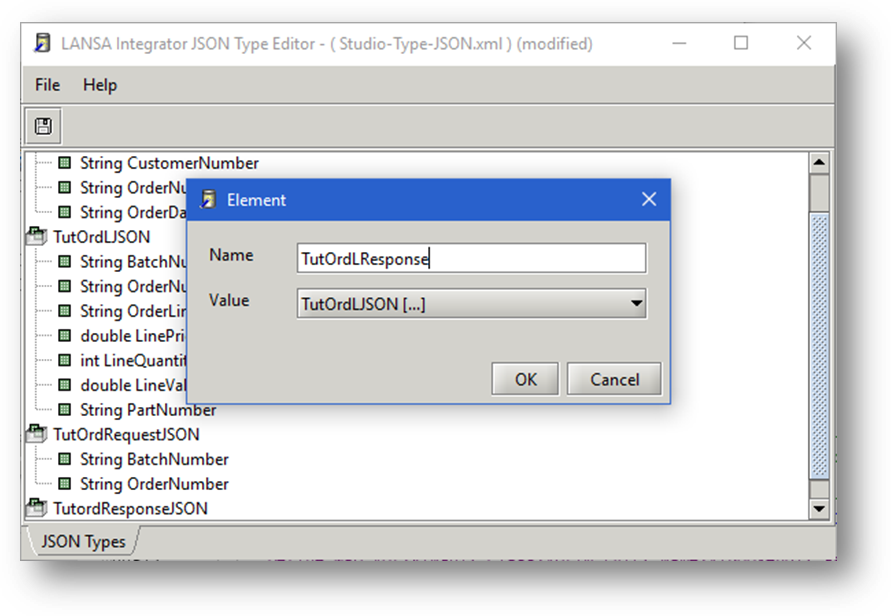
13. Repeat step 12 and call the new element of TutordLResponse. In the value, click on the drop down and select TutordLJSON[…]. Click OK
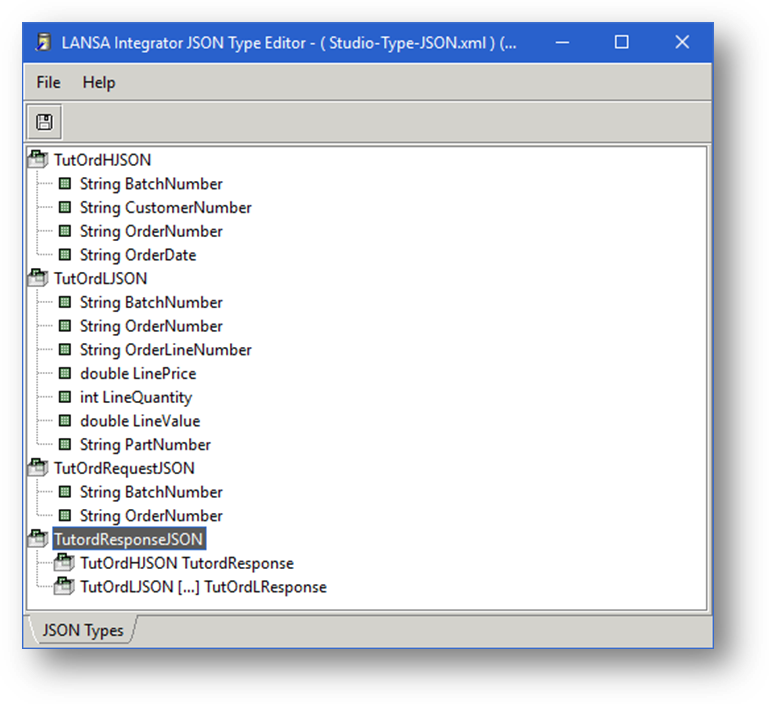
14. Your JSON server types should now look like this:-
15. Click File, Save (or Ctrl-S) to save your JSON Server types then File, Exit (or Alt-F4) to close the LANSA Integrator JSON Type Editor window.
Now continue with the following step:
JSM022 - Create, Build and Deploy the JSON Binding Solution for the JSON Request
 Version 7.0